
valkey-lab のご紹介:キャッシュの限界を推測するのはやめよう
キャッシュのベンチマークで知るべきなのは、レイテンシ SLO を超えるまでに維持できる負荷です。その測定を支える valkey-lab を紹介します。
 Khawaja Shams
まず質問です。皆さんのキャッシュは、レイテンシ SLO を満たせなくなるまでに、毎秒何件のリクエストを処理できますか。
答えがわからなくても無理はありません。この数値を求めるのは難しいからです。標準的なツールは valkey-benchmark で、1つのことには優れています。サーバーを指定し、コマンドを全速力で送り、最後にスループットを表示することです。その数値から、サーバーが動いていることと、全力で動かした場合のおおよその速度はわかります。
しかし、本番運用の観点では、見た目ほど役に立ちません。
読み取りと書き込みが80:20で、リクエストの半数がホットキーに集中したとき、p999 はどうなるでしょうか。実際に運用する予定のレートでテールレイテンシはどの程度でしょうか。SLO を超えるまで、どれほど余裕がありますか。10:32に起きたレイテンシの急上昇は偶発的なものか、上限に達した結果か。60秒の実行後に出る単一の集計値では、どれにも答えられません。平均を計算する過程で、必要な情報を捨ててしまうからです。
valkey-lab は、この問いに答えるために作られました。
これは io_uring を使ったカーネルバイパス I/O、接続ごとのパイプライニング、マルチスレッドのワーカーを備えた、高性能な Valkey/Redis ベンチマークです。初期設定は、意図的に使い慣れたものにしています。引数なしで実行すると、
📄
valkey-lab
localhost:6379 に対し、GET/SET 比率80:20、100万キーで60秒間実行します。使い慣れたツールと同じ形式、同じ短縮フラグ(-h、-p、-c、-P、-r)です。より難しい問いを投げかけ始めると、このツールの面白さが見えてきます。
飽和点探索:容量の余裕を自動で求める
現状、この数値を手作業で求めるなら、まずあるレートでベンチマークを実行します。p999 を見て問題なさそうならレートを上げ、再実行してまた確認します。これを5回、10回と繰り返し、各結果を見比べながらテールレイテンシが急増する地点を探します。そのうち、どの実行でどの設定を使ったかもわからなくなります。最後は「おそらく正しい」と思える数値を選び、それをもとに容量を計画します。valkey-lab なら、この探索をコマンド1つで実行します。
📄
valkey-lab saturate --slo-p999 1ms -c 16 -P 32
合成ベンチマークでは、毎秒2Mリクエストを処理できると出るかもしれません。しかし、現実的な読み書き比率、ホットキー、ウォームなキャッシュを加えると、p999 が1.2Mで突然 SLO を超えます。サーバー自体は毎秒2Mリクエストを処理し続けていても、実用上の上限ははるかに低いのです。
saturate は --start-rate の指定値(未指定なら1000)から送信を始め、各段階でリクエストレートに --step の係数を掛けます。初期値は 1.05 なので、負荷は段階的に複利で増加します。各段階では一定の測定時間にわたってレートを維持し、パーセンタイル全体を測定して SLO と照合します。いずれかのパーセンタイルが基準を超えると負荷増加を止め、最後に基準を満たしたレートを報告します。
ある段階で失敗すると、valkey-lab はスループット制約なのか、レイテンシ超過なのかという失敗の種類を示します。これにより、より的確にクラスターを調整できます。
スループット制約は、指定したレート自体をサーバーが実現できず、目標未満で頭打ちになった状態です。これは容量の問題であり、CPU の追加、シャードの追加、またはトポロジーの変更が必要です。
レイテンシ超過は、レートには追随できても、テールレイテンシが SLO を大きく超えた状態です。サーバーは指定レートを維持できますが、処理経路のどこかで負荷に応じた急上昇が起きています。ホットキー、GC の停止、スケジューラーの停滞、ネットワークの揺らぎなどが考えられます。急上昇の原因を追う必要があり、ハードウェアを増やしても解決しません。
つまり失敗の種類によって対策は大きく変わります。スループットの数値しかなければ、どちらを選ぶべきかわかりません。
平均値は重要な障害を隠す
次の問題は、ベンチマーク終了時に現れます。集計統計は、通常まさに見つけたい動作を隠します。p999 が59秒間は312µs、1秒間だけ4.2 msだったとしても、実行全体の p999 は正常に見えます。注目すべきなのは、その急上昇です。
valkey-lab は、レイテンシの分布全体を1秒につき1行で出力します。
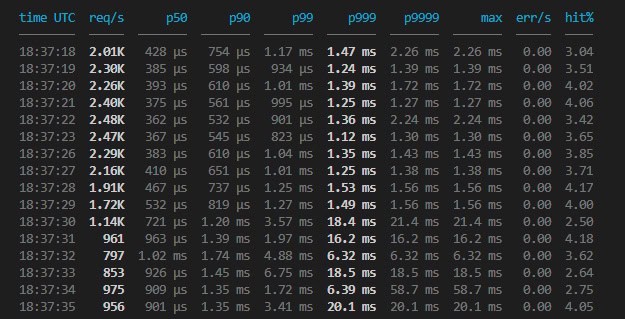
p50 から p99.99 までの主要パーセンタイル、最大値、エラー数、キャッシュヒット率を、すべて毎秒表示します。1秒だけ続いた急上昇も、テールが伸びた1行として現れます。実行終了時の要約に比べて大きな改善です。機械で処理するなら、–output json で改行区切り JSON を出力し、そのまま別の処理へ渡せます。–output quiet なら、実行全体を1行の要約にまとめられます。
ベンチマークを実際のワークロードに近づける
飽和点を含むあらゆるベンチマーク数値には、重要な注意点があります。上限の有用性は、それを測定した負荷の現実性に左右されます。多くのツールの初期設定は、現実的ではありません。
標準的なベンチマークの動作を考えてみてください。読み取りだけ、あるいはほぼ読み取りだけを送ります。100% GET が最大の数値を出しやすい、または模擬しやすいためです。キーは一様ランダムに選ばれ、どのキーも同程度にコールドで、ホットキーはありません。全速力で動かし、飽和時のスループットを測ります。そして通常は空のキャッシュから始めます。本番トラフィックはどうでしょうか。読み書きが混在し、キー空間のごく一部に大半のリクエストが集中し、キャッシュはウォームです。これらの違いが1つあるたびに、ベンチマークの現実性が下がります。
valkey-lab は、それぞれの違いに対応します。-r で実際の読み書き比率を設定し、現実のキャッシュが担う書き込み経路を測定します。–distribution zipf を有効にすれば、本番システムによくあるように、ごく一部のキーへ大半のトラフィックが集中します。一様なアクセスパターンは競合を避け、実際の高頻度処理経路の挙動を隠してしまいます。
–rate-limit で負荷を固定し、想定する運用レートでレイテンシを追跡します。さらに –prefill でキャッシュを事前に埋めるか、–backfill でミス時にデータを格納するリードスルーキャッシュを模擬します。こうして GET ベンチマークが、本番と同じようにヒットを測れるようにします。
📄
valkey-lab --prefill -r 100:0 --distribution zipf -c 16 -P 32
これらを組み合わせると、測定した上限が本番を意味のある形で反映します。必要なら、ウォームアップの調整、RESP3、–cpu-list によるワーカーのコア固定、TLS、完全な TOML 設定なども使えます。しかし数値を信頼する前に重要なのは、この4つの大きな前提を現実に合わせることです。
実行から重要なデータを取り出す
現実的なベンチマークデータが得られたら、実行終了後も役立つようにする必要があります。
--parquet results.parquet はデータセット全体をディスクへ保存します。各スナップショットのカウンター、ゲージ、実際のナノ秒単位ヒストグラムとしてのレイテンシ分布を含む、すべてのメトリクスを格納します。valkey-lab の可視化機能と組み合わせれば、細部まで掘り下げられます。
📄
valkey-lab --parquet results.parquet
valkey-lab view results.parquet
view はファイルを読み込み、対話式ダッシュボードを開きます。同期した時間軸をズーム、パンしながら、スループット、ヒット率、エラー率、GET・SET・合計別のレイテンシを、対数スケールで確認できます。p999 が跳ね上がった正確な秒へ移動し、同じ時間帯の他のメトリクスも読めます。
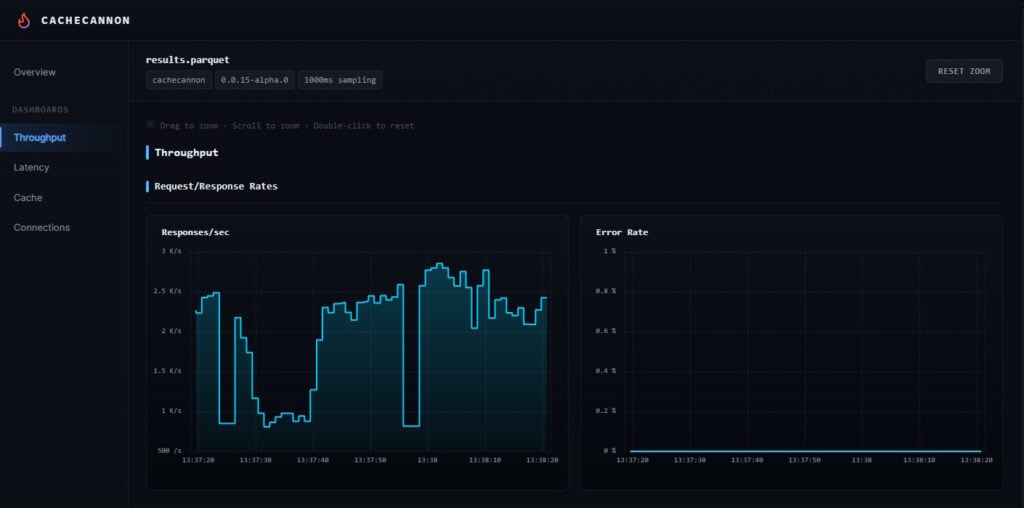
用途の1つは回帰テストです。毎回同じスキーマの Parquet ファイルになるため、実行同士を直接比較できます。Valkey のアップグレード前後に測定すれば、「テールレイテンシは変化したか」に差分で簡単に答えられます。ビューアーのほか、自分でクエリを実行する方法でも性能変化を調べられます。DuckDB、pandas、Polars は Parquet を直接読めるので、実行結果のディレクトリに対する数行の SQL が、キャッシュ性能の回帰テストになります。記録した結果のフォルダーを DuckDB に指定し、ファイルごとのピークスループットを計算させます。
📄
SELECT
  filename,
  max(responses_received) AS total_responses,
  max(request_errors)     AS errors
FROM read_parquet('runs/*.parquet', filename = true)
GROUP BY filename
ORDER BY filename;
すでに記録したデータから、保存したすべてのベンチマークの前後比較表ができます。
Parquet 出力は原因分析にも使えます。レイテンシチャートの急上昇でわかるのは、問題が起きた時刻であり、理由ではありません。サーバーまたはクライアントで収集した Rezolus のデータを view に渡すと、CPU 使用率、ネットワーク、スケジューラーの動作などのシステムテレメトリが、同じベンチマークの時間軸に重ねられます。p999 の急上昇が、その上の軸のスケジューラー停止やネットワークの不調と完全に一致すれば、それだけで答えが見つかります。
推測をやめる
最初の質問に戻りましょう。答えるのが難しいのは、従来の最大 RPS 測定ツールが要約だけを出し、重要な情報を捨ててきたためです。valkey-lab は方法を変えます。読み書き比率、ホットキー、毎秒のテールレイテンシを保持し、後から振り返れるように実行を記録します。手動の負荷増加に半日かかっていた余裕の数値を、コマンド1つで求められます。失敗の種類もわかるため、次の対応を判断できます。
valkey-lab は cachecannon 上に構築され、ワークロード生成、飽和点探索、テレメトリ収集、分析機能を受け継いでいます。io_uring のために Linux(カーネル6.0以降)が必要で、Rust でビルドします。ライセンスは Apache-2.0 または MIT を選べます。開始手順はこれだけです。
📄
cargo install --path . --bin valkey-lab
valkey-lab saturate --slo-p999 1ms
Valkey サーバーに対して実行し、どの数値が返るか確認してください。「キャッシュはどれだけ速く動くか」ではなく、「本番ワークロードに支障が出るまで、どれだけ速く動くか」を問いましょう。午前3時にも予測可能なシステムを維持するなら、その数値をもとに容量を計画する必要があります。